
Usage
Link Orbitvu presentations to Magento products on the product edit page, choose which presentation items are shown and in which order, and copy them to the native Magento images.
Linking presentations to products
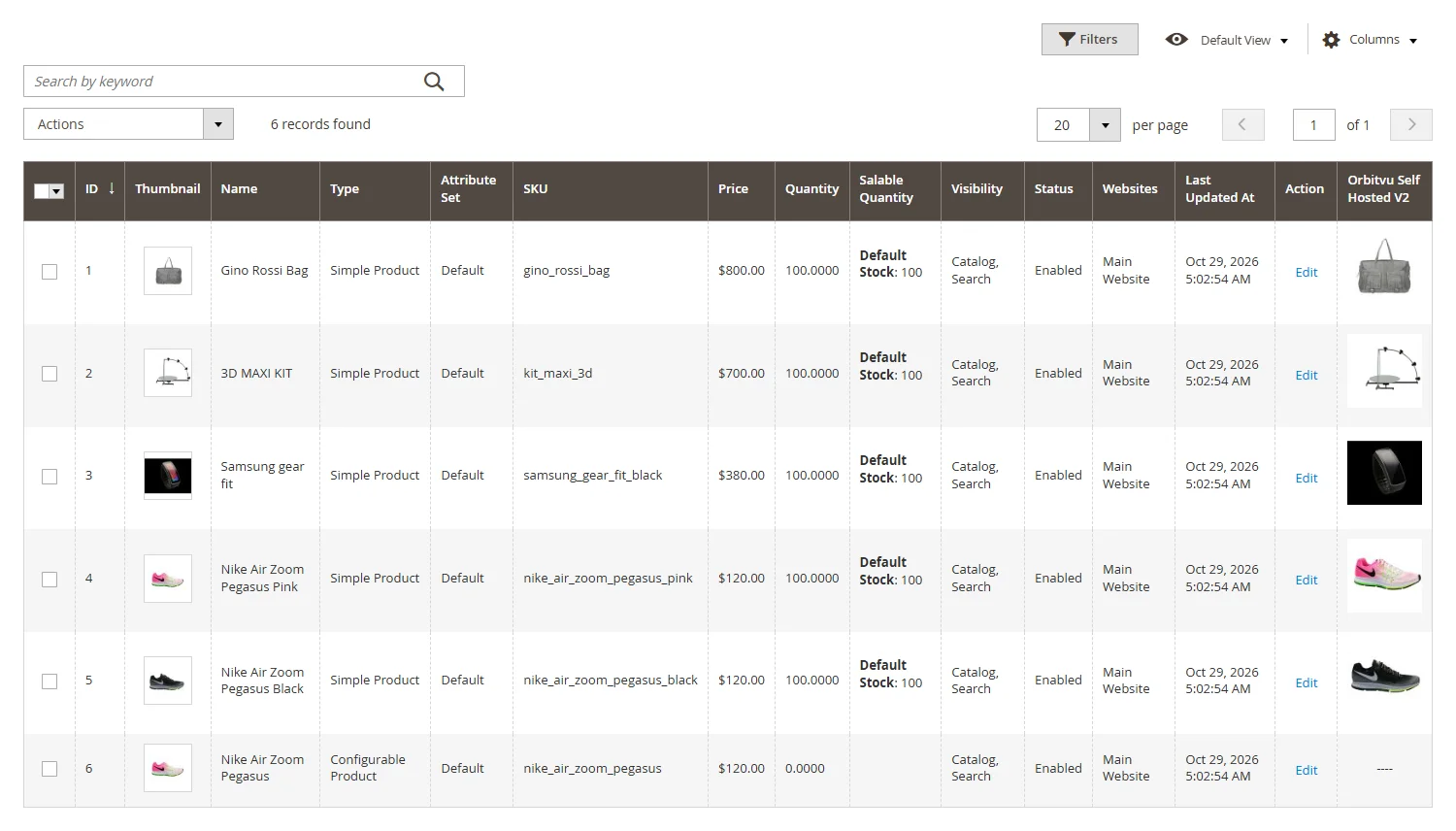
In Catalog → Products the column Orbitvu Self Hosted V2 shows the thumbnail of the presentation linked to each product.
Edit a product and open the Orbitvu Self Hosted V2 section. When no presentation is linked, it lists the presentations uploaded to the shop. You can search them by name or SKU and sort them by date, SKU or name.
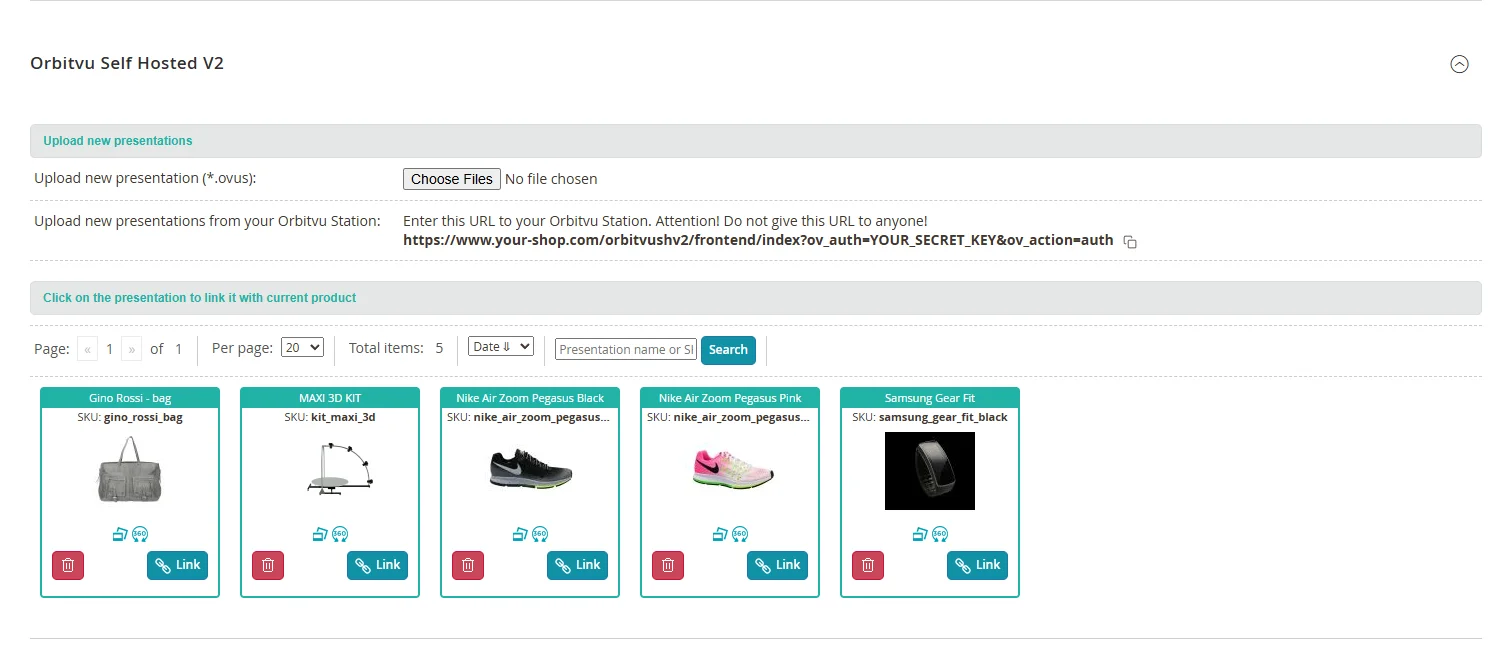
Click Link on a presentation to link it to the product. The trash icon deletes the presentation from the shop.
Presentations can also be linked automatically by SKU, see Batch operations.
Managing presentation items
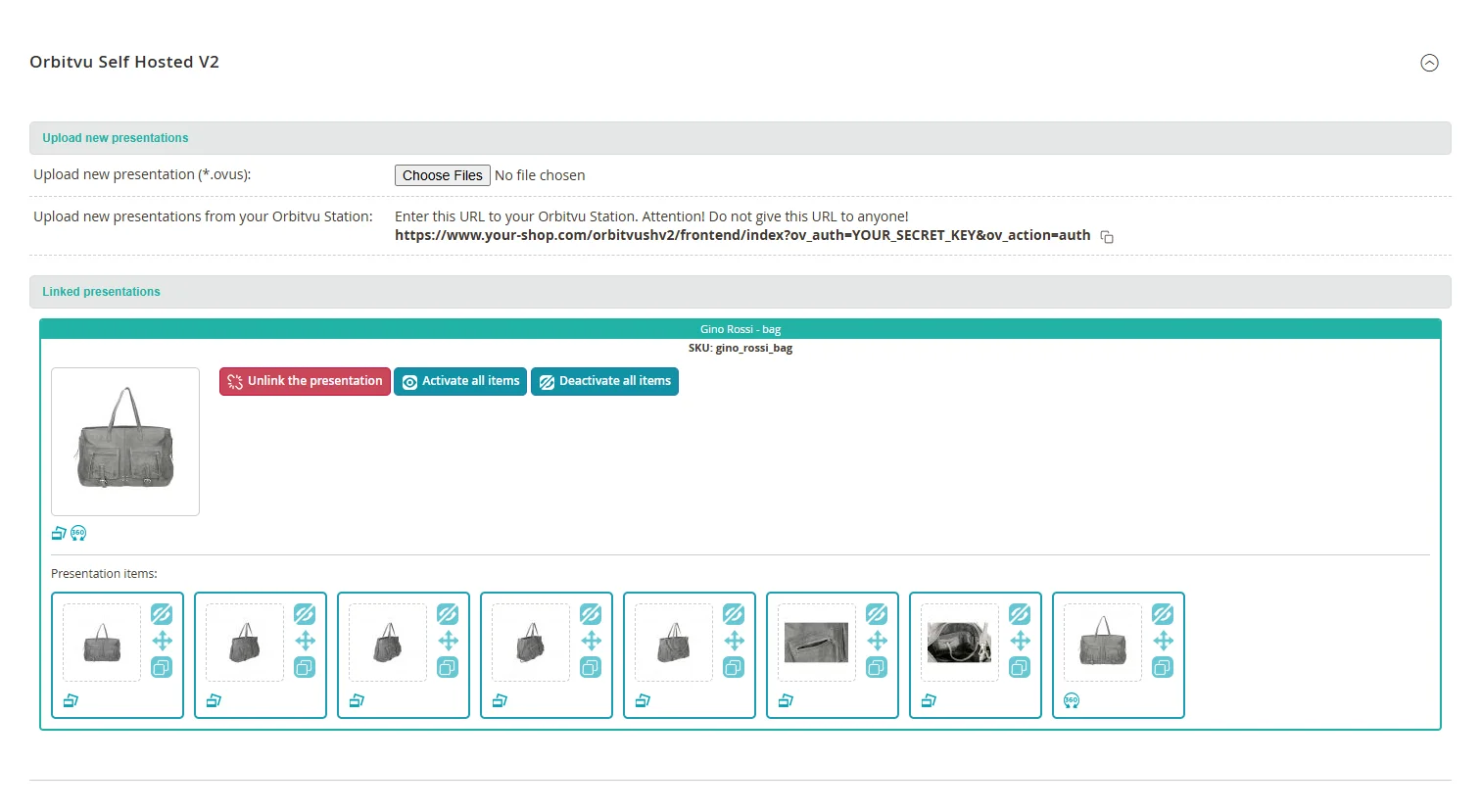
After linking, the section shows the linked presentation and its items. The items are shown in the product page gallery, together with the native Magento images.
| Button | Action |
|---|---|
| Unlink the presentation | Removes the link between the presentation and the product. The presentation stays in the shop. |
| Activate all items / Deactivate all items | Shows or hides all items of the presentation in the product gallery. |
| Deactivate item / Activate item (eye icon of an item) | Shows or hides one item. |
| Move item (arrows icon) | Drag and drop the item to change its position in the gallery. |
| Copy to original images | Copies a 2D image to the native Magento images of the product (for a 360° presentation: one frame of it). |
Copied images are regular Magento product images, so other extensions (for example product feeds) can use them. The setting Images 2D Copy Settings can copy them automatically when a presentation is linked, see Plugin settings.
Configurable products
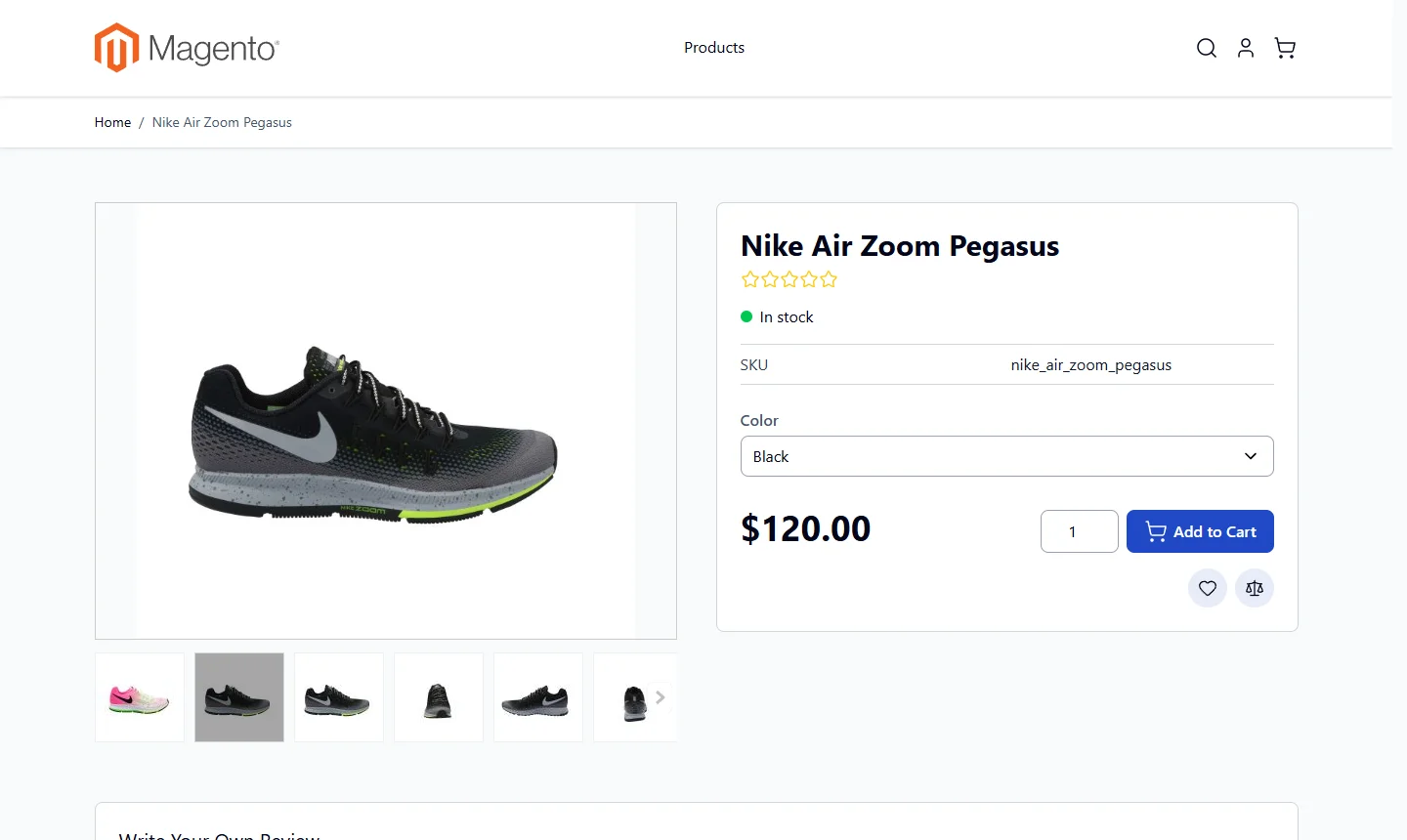
Link a presentation to each variant (the simple products of a configurable product), and, if you want, another one to the configurable product itself. On the product page, choosing a variant (for example a colour) shows the media of that variant, including its Orbitvu presentation.
Where the variant media go in the gallery is set by Configurable Products: Variant Media in Stores → Configuration → Orbitvu Self Hosted V2 → Gallery. By default the plugin follows the theme: in Luma the variant media come first, in the Hyvä default theme after the media of the configurable product.