

Installation for Multisite
There are 2 ways of installing Orbitvu SELF HOSTED plugin in your Woocommerce shop.
There are 2 ways of installing Orbitvu SELF HOSTED plugin in your Woocommerce shop.
Manual upload using ftp manager
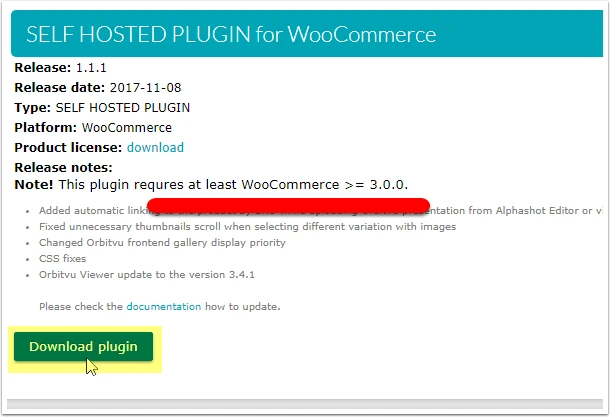
- Download the .zip file from your ORBITVU SUN account
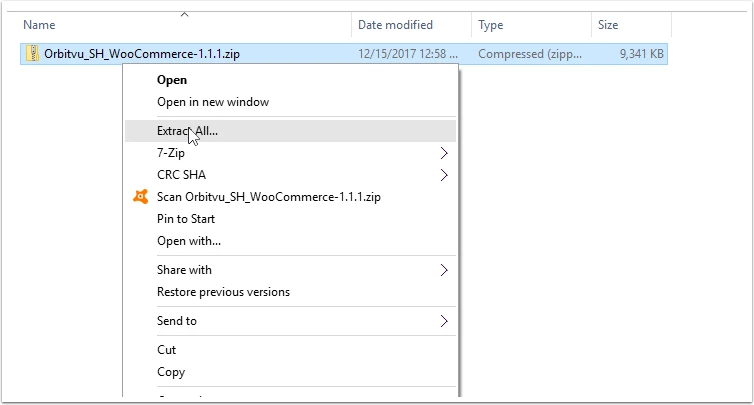
- Unpack the .zip file
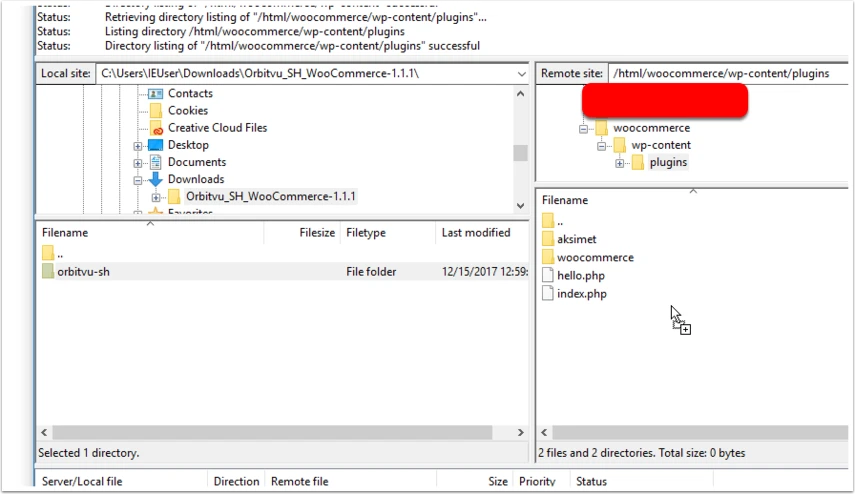
- Copy unpacked content into Woocommerce's plugins folder: "woocommerce_path/wp-content/plugins"
-
Login to your Woocommerce's back office and go to Sites.
-
Go to step 5 from the following section: Upload via Woocommerce's back office.
Upload via Woocommerce's back office
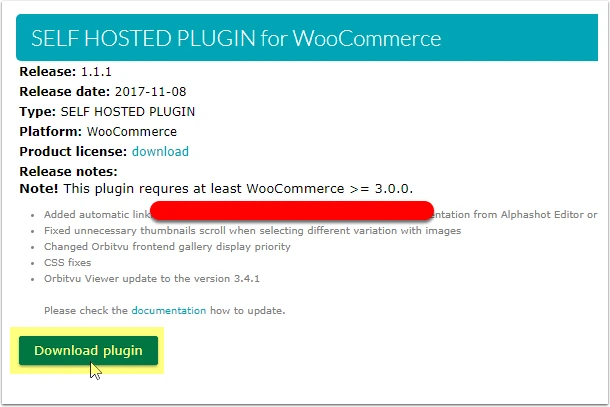
- Download the .zip file from your ORBITVU SUN account
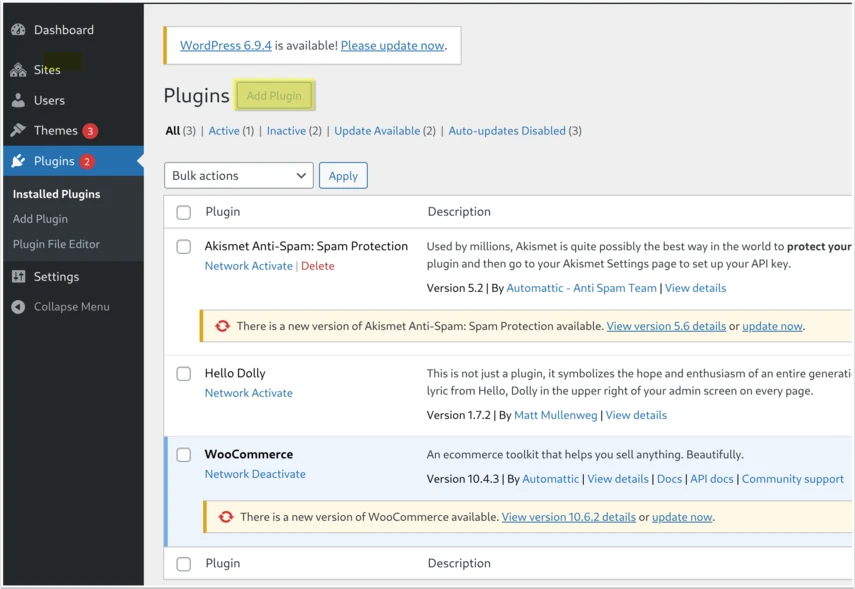
- Log in to your WooCommerce back office and go to the Plugins section. Click "Add Plugin," which is located at the top.
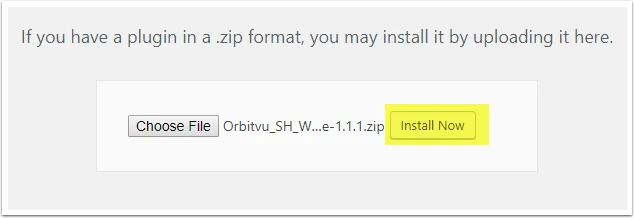
- Click the button "Upload plugin". Choose newly downloaded .zip file and click "Install now".
- After installing the plugin, you will see a confirmation screen with two options: “Network Activate” and “Go to
Plugin Installer.”
Important: Do not click “Network Activate.”
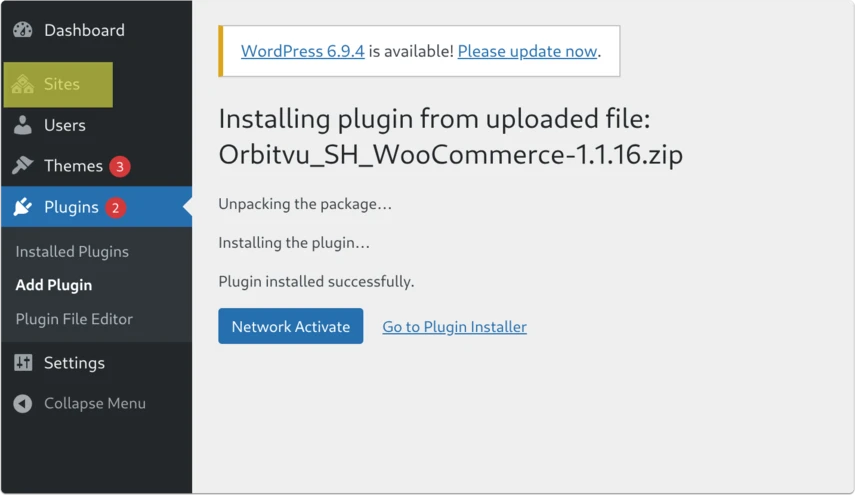
- Go to Sites.
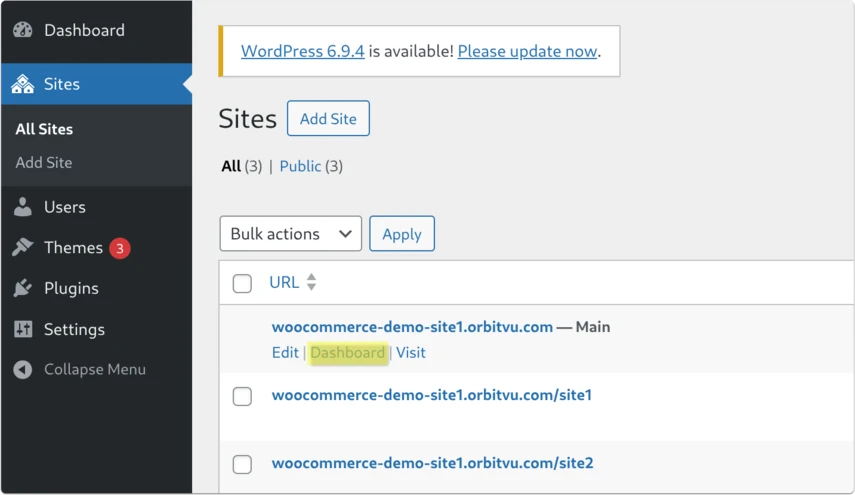
-
Click „Dashboard” for current edited site.
-
Go to the Plugins. Search for the "Orbitvu SELF HOSTED" plugin and activate it.
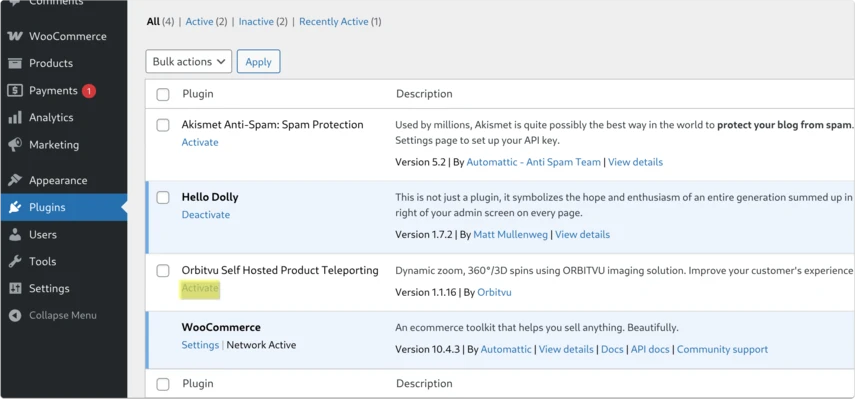
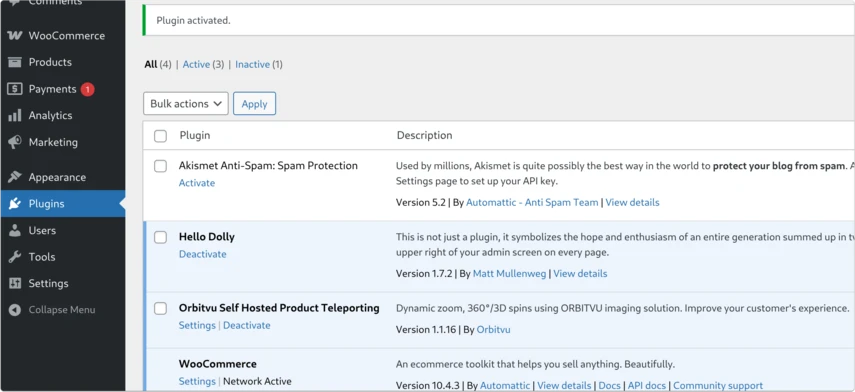
- The plugin should be activated.
- For the remaining sites, repeat steps 5-8.