

Connecting plugin with ORBITVU CLOUD account
Paste the license key of your ORBITVU CLOUD account in the plugin settings. Until then the plugin is connected to a demo account.
The plugin shows the presentations of the ORBITVU CLOUD account whose license key is set in its settings. After the installation it is connected to a demo account, so you can try it before entering your own key. In demo mode some options of the product edit page are disabled.
-
Log in to your ORBITVU CLOUD account and go to Marketplace → Web Integrations (marketplace.orbitvu.io/my-products/plugins). In SUN based plugins, copy the License key with the copy icon next to the field.
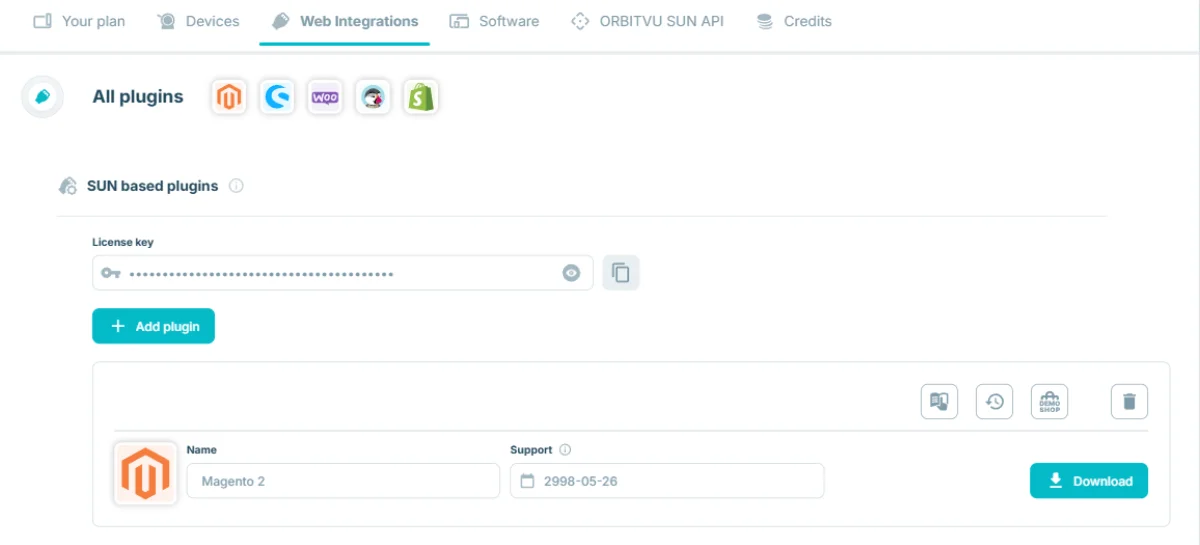
-
In the Magento back office go to Stores → Configuration → Orbitvu Cloud → General, paste the key in License Key and click Save Config.
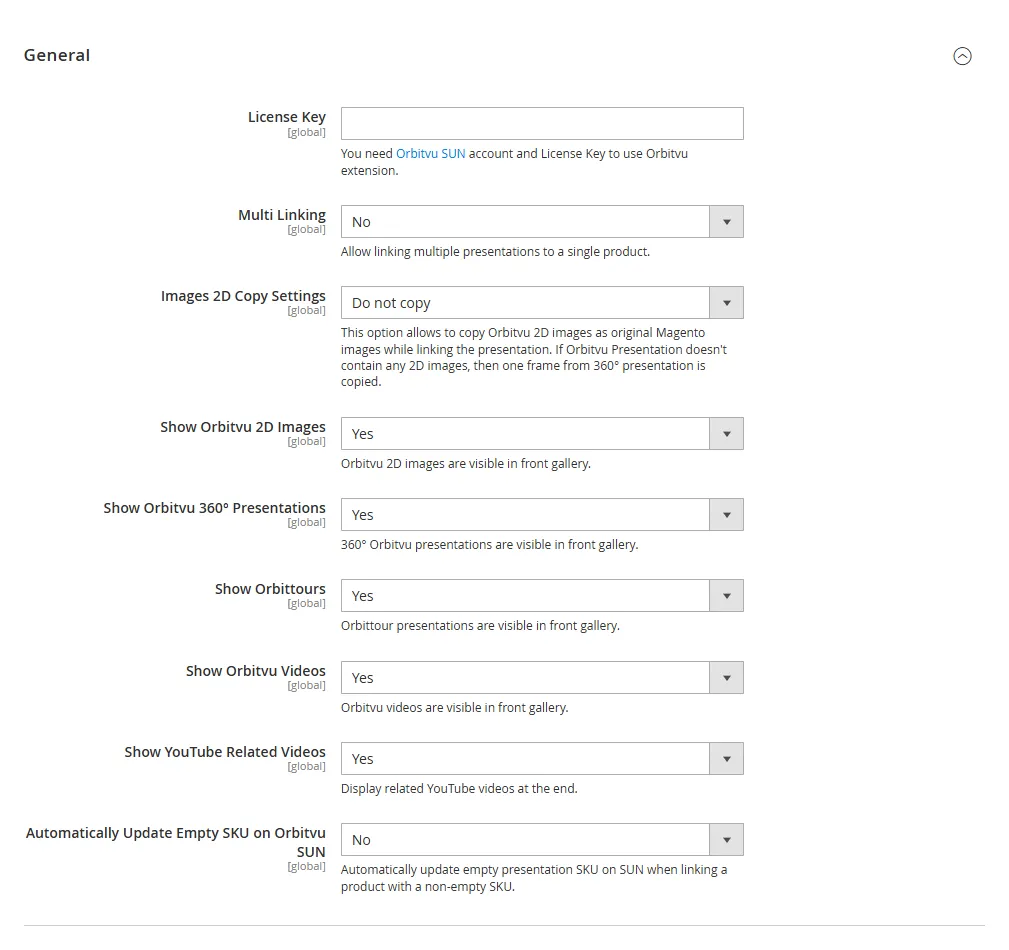
From now on, the product edit page lists the presentations of your account, and they can be linked to products, see Usage.
To go back to the demo account, clear the License Key field and save the configuration.