

Batch operations (linking and synchronizing)
Link many presentations from ORBITVU CLOUD to products by SKU at once and keep the linked presentations up to date with bin/magento commands, also from a cron job of your server.
Linking and synchronizing are bin/magento commands. Run them in the Magento root directory, as the owner of the Magento files (not as root). The web server timeout does not stop them, so they also work with many products and presentations.
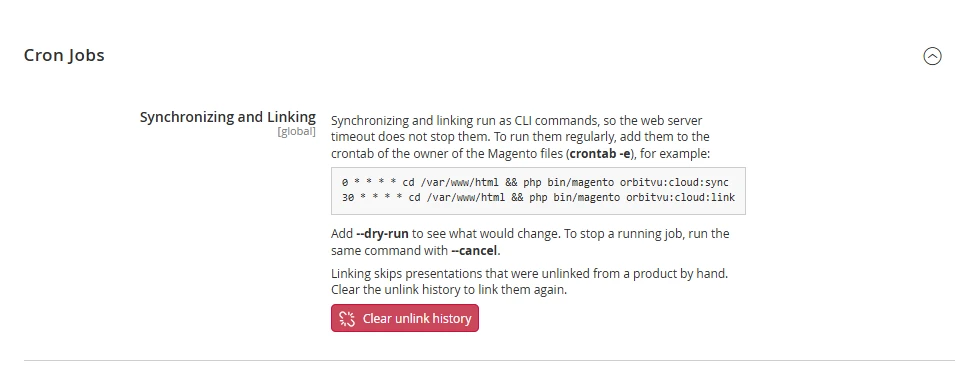
Stores → Configuration → Orbitvu Cloud → Cron Jobs shows example cron entries for your shop and the Clear unlink history button.
Automatic linking by SKU
Automatic linking compares the SKU of each presentation in your ORBITVU CLOUD account with the SKU of the Magento products. When they match, the presentation is linked to the product. It links only products that have no presentation yet, and one presentation per product (the Multi Linking setting is not used here).
bin/magento orbitvu:cloud:linkAdd --dry-run to see what would be linked.
A presentation that was unlinked from a product by hand is not linked to it again by automatic linking. To allow it again, click Clear unlink history.
Synchronizing presentations
Synchronization reads the linked presentations from ORBITVU CLOUD again and updates them in the shop: it adds new items, removes deleted ones and updates changed thumbnails, names and SKUs.
bin/magento orbitvu:cloud:syncAdd --dry-run to see what would be synchronized.
Running the commands regularly
To link and synchronize automatically, add the commands to the crontab of the owner of the Magento files (crontab -e). For example, to synchronize every hour and link every hour at half past:
0 * * * * cd /path/to/magento && php bin/magento orbitvu:cloud:sync
30 * * * * cd /path/to/magento && php bin/magento orbitvu:cloud:link
Replace /path/to/magento with the Magento root directory. Cron Jobs in the configuration shows these lines with the directory of your shop.
Only one synchronization and one linking can run at a time. A command started while the same operation is running stops with the message that it is already running.
Stopping a running operation
Run the same command with --cancel, for example bin/magento orbitvu:cloud:sync --cancel. The running operation stops after the current presentation.
Earlier plugin versions
Plugin versions earlier than 2.2.0 also had an Auto Synchronizing URL and an Auto Linking URL. They were removed in 2.2.0. If a cron job of your server calls one of these URLs, replace it with the commands above.
The previous plugin's command bin/magento orbitvu:start --type=link (or --type=sync) still works and runs the commands above.